Reversing in Ghidra SRE
Ghidra SRE is used as the primary reverse engineering platform. All instructions and tools presented on the site are designed to work with Ghidra.
This guide will help you dive into the world of reverse engineering in just a few steps.
Since around 2019, Ghidra SRE has had a bug: FF FF in the v5t architecture is recognized as the instruction BL 0xFFE. This causes an infinite loop during auto-analysis.
You must use a fixed version of Ghidra when working with Siemens firmware.
- Install the fixed version of Ghidra, which already includes this fix;
- Or install the official version of Ghidra and apply the ARMTHUMBinstructions.sinc patch manually.
What to do before you start
-
Install the fixed version of Ghidra or the latest official version of Ghidra SRE and apply the ARMTHUMBinstructions.sinc patch.
-
Obtain a fullflash from the phone and remove FFS and EEPROM from it.
This is important for auto-analysis, because FFS and EEPROM contain ambiguous data that may be interpreted as instructions.
You can download a collection of firmware files with FFS and EEPROM already removed: fullflashes.zip
Step 1: Load your fullflash.bin into Ghidra
Details
-
Launch the disassembler and select
File -> Import File -
Select the
fullflash.binfile -
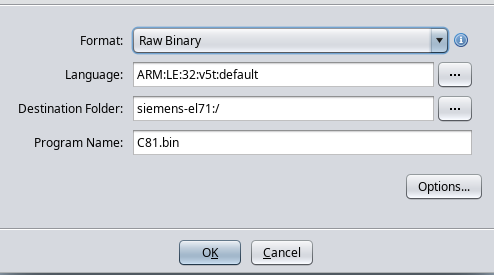
Configure the import parameters:
- Format:
Raw Binary - Language:
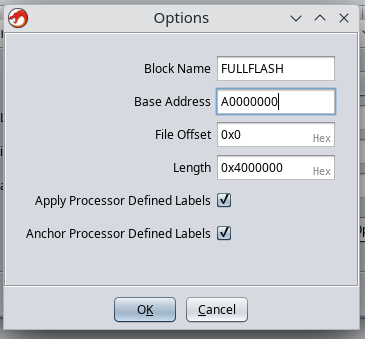
ARM v5t 32 little - Options → Block Name:
FULLFLASH - Options → Base Address:
A0000000
- Format:
-
Click
fullflash.binin the project list. -
Ghidra will offer automatic analysis; you need to decline (click No).
Step 2: Adjust the FULLFLASH region attributes
Go to Window -> Memory Map and set the attributes for the "FULLFLASH" block:
 R   W   X    Volatile
[x] [ ] [x]     [ ]
It is very important to clear the W checkbox, because this directly affects decompilation.
Step 3: Configure auto-analysis parameters
-
Select
Analysis -> Auto Analyse -
Change the analysis parameters:
Disable:
-
Embedded media -
Non-returning functions - discovered(otherwise the disassembler may stop prematurely inside a function) -
Create Address Tables(it is better to run this as a one-shot after the main analysis) -
Demangler GNU
Enable:
-
Scalar operand references -
Shared return callswith the option[x] Allow conditional jumps
-
-
Click "APPLY", but DO NOT CLICK "ANALYZE"!!!
-
Close the analysis window.
Step 4: Memory region for IO registers
Details
-
Go to
Window -> Memory Map -
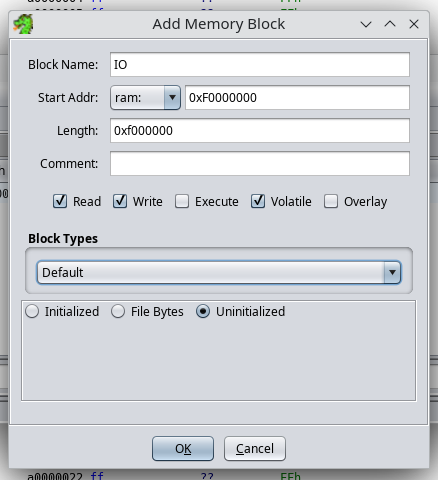
Add a new region with the following parameters:
- Block Name:
IO - Start Addr:
0xF0000000 - Length:
0x0F000000 - Attributes:
[x] Read [x] Write [ ] Execute [x] Volatile [ ] Overlay - Uninitialized
- Block Name:
Step 5: Import a RAM dump from the phone
Import all previously obtained memory dumps.
Example with RAM:
-
File -> Add to Program -
Select the file, for example:
C81v51_RAM_A8000000_00800000.bin -
Specify the parameters:
- Block Name:
RAM - Base Addr:
0xA8000000
Click "OK".
- Block Name:
-
Go to
Window -> Memory Mapand set the attributes for the "RAM" block:R W X Volatile[x] [x] [x] [ ]
Step 6: Plugins for Ghidra
Details
- Download: ghidra_scripts.zip or clone the repository
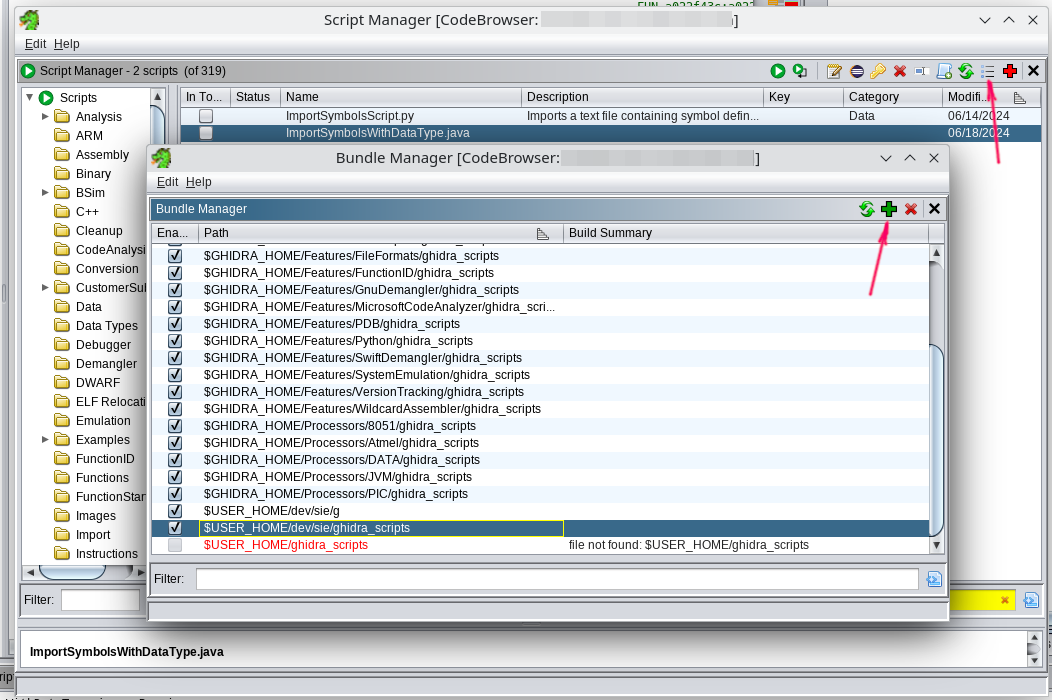
- Open
Window -> Script Manager - Click "Manage Script Directories"
- Add the path to the extracted
ghidra_scriptsfolder.
Step 7: Import C types from swilib
Details
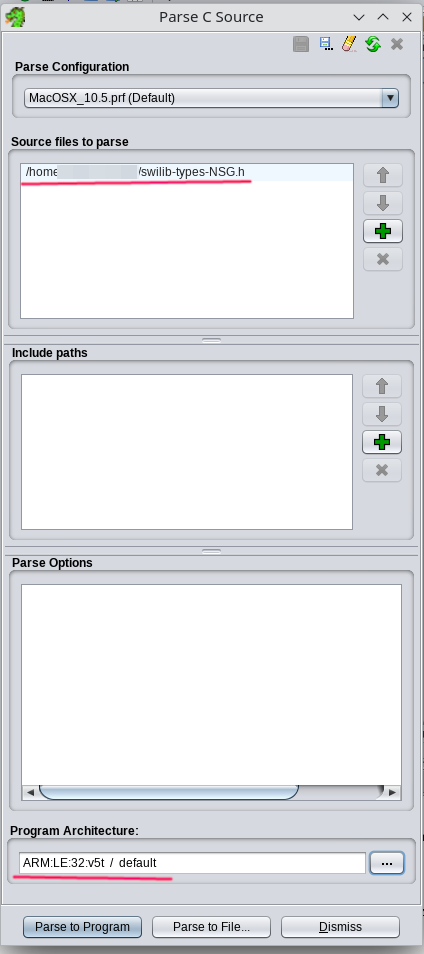
- Download the appropriate
swilib-types-PLATFORM.hfrom Swilib data types for disassembler - Select
File -> Parse C Source... - Click
Clear profile(the eraser icon) - Add
swilib-types-PLATFORM.htoSource files to parse - Set
Program architecture:ARM v5t 32 little - Click
Parse to Program -> Continue -> Don't use Open Archives -> OK
Step 9: Import the CPU IO register list
- Download the appropriate
cpu-PHONE.txtorcpu-pmb887x.txtfrom CPU IO registers - Open
Window -> Script Manager -> ImportSymbolsWithDataType.java -> Run Script - Select
cpu-PHONE.txtorcpu-pmb887x.txt
Step 10: Import swilib symbols
Details
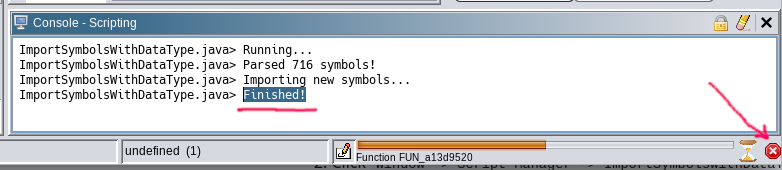
- Download the appropriate
symbols-PHONE.txtfrom Firmware symbols for disassembler - Open
Window -> Script Manager -> ImportSymbolsWithDataType.java -> Run Script - Select
symbols-PHONE.txt
This will take some time, because auto-analysis will start.
When you see "Finished" in the script console, you can stop the analysis and move on.
Step 11: Firmware auto-analysis
Full analysis
- Open
Analysis -> Auto Analyse 'fullflash.bin' - Make sure the parameters match those specified in Step 3
- Click ANALYSE
This will take 10-30 minutes. The process is long, so be patient.
Run only once
- Select
Analysis -> One-shot -> Create Address Tables
Congratulations, you did it! ✨
We look forward to your patches in the patch database at patches.kibab.com :)